Job scheduling software for service businesses
See every booking by day, week, month or team, move jobs by drag and drop, block double-bookings and take bookings online. Start a 14-day free trial.
Updated
The problem
The diary lives in one head, a whiteboard and three phones. A job moves, somebody is double-booked, and the customer hears about it from the technician who turns up at the wrong time.
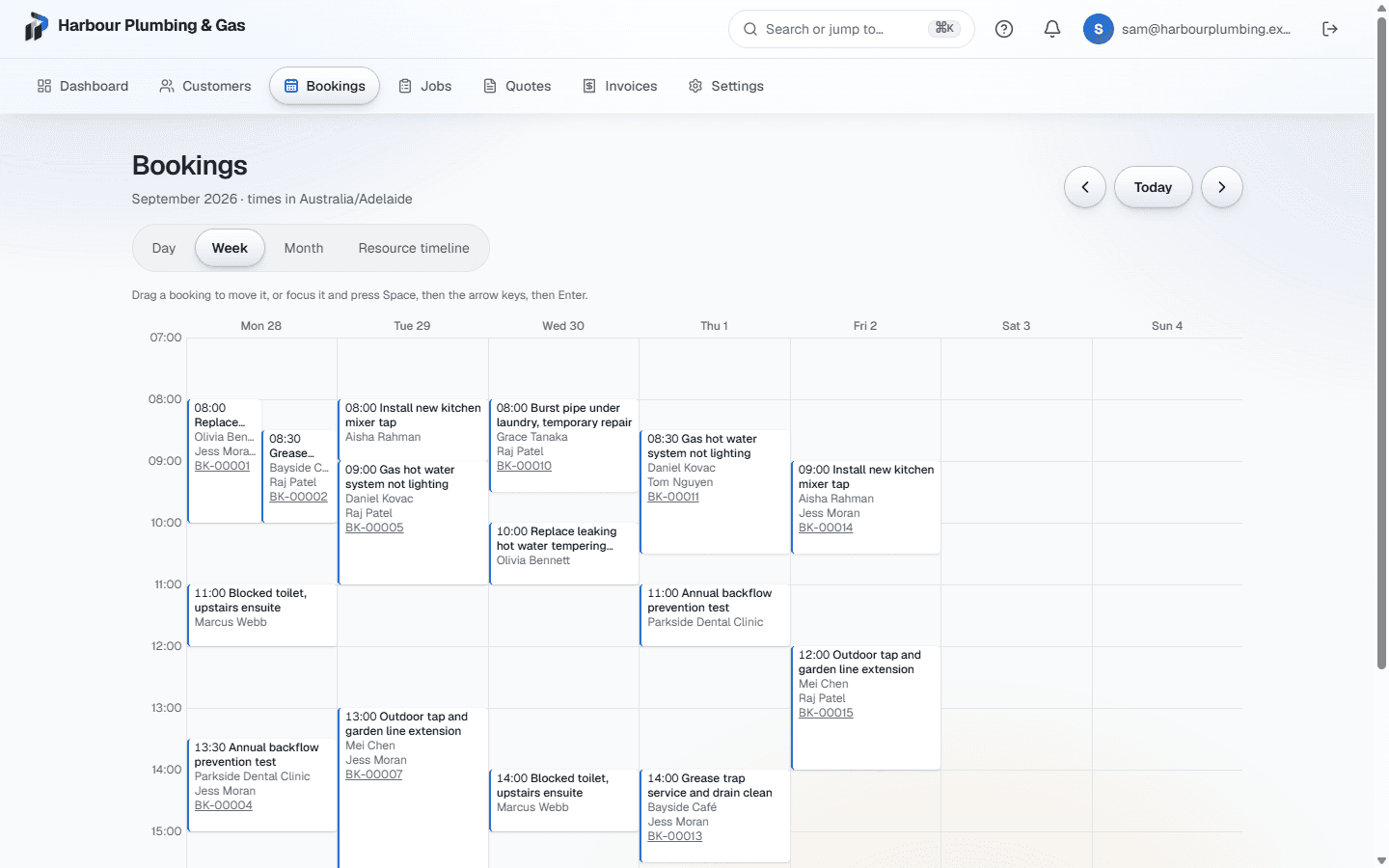
Primemgr keeps one schedule for the whole business. Every booking belongs to a person or a resource, and every view shows times in your business's own time zone, so a job at 9:00 means 9:00 where the work is.
Four ways to see the work
- Day and week views for planning the next few days.
- Month view for the shape of the month ahead.
- A timeline with one row per person, for seeing who is free.
- Each view works on a phone as well as a desktop.
Move a booking without breaking the day
Drag a booking to a new time or a new day. From the keyboard, pick it up with Space, move it with the arrow keys and drop it with Enter, or press Escape to put it back. A booking keeps its length when it moves.
If the person is already booked at the new time, the move is refused and the booking stays where it was. The check happens when the move is saved, so two people rearranging the same afternoon cannot both win.
Let customers book themselves
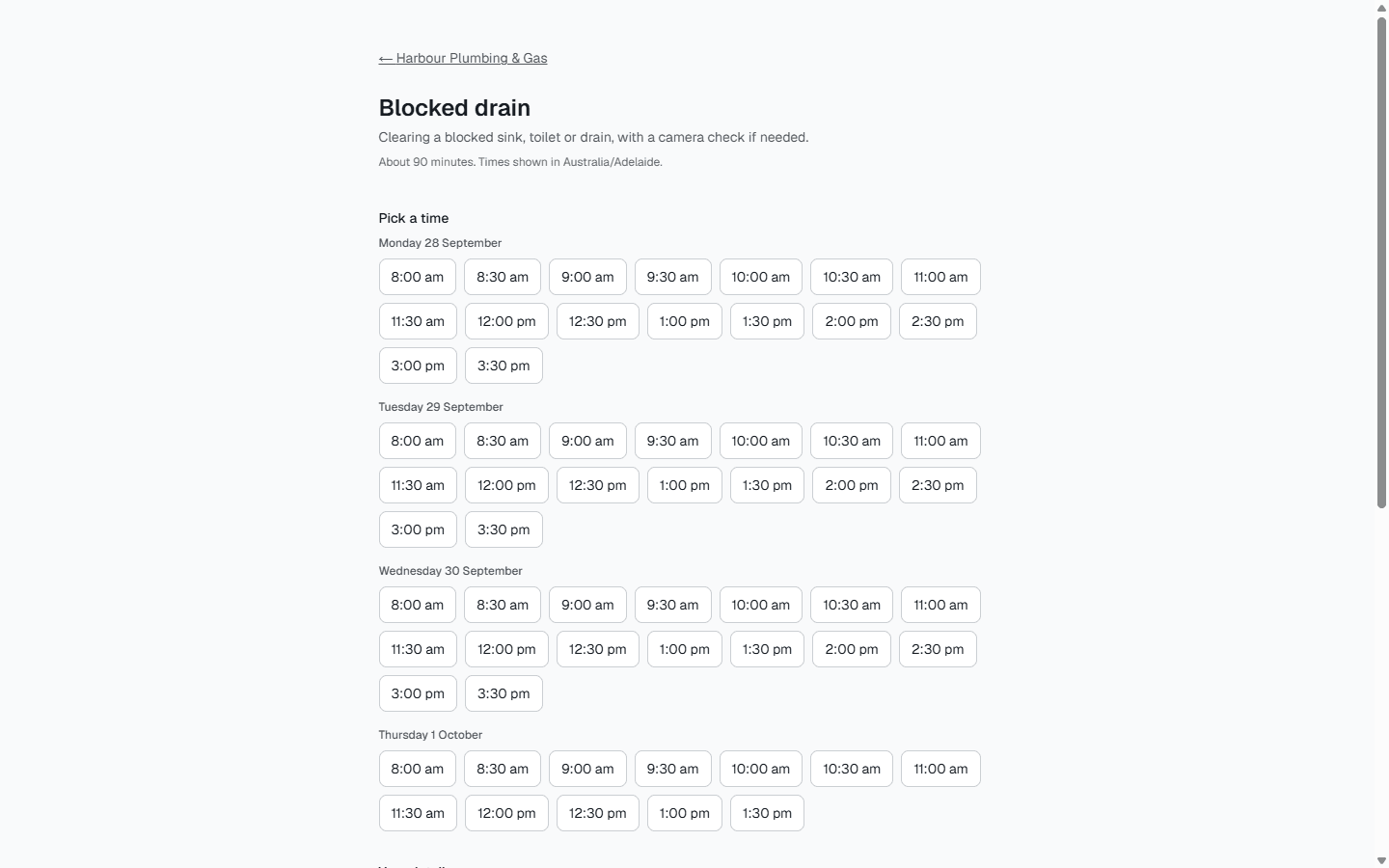
Publish the services customers can book, each with its length and who it needs. Your booking page shows only the times that are genuinely free, respects your opening hours and minimum notice, and takes a name, email or phone and a note. A booking made online lands on the same schedule as one made by phone.
The customer gets a confirmation with a link to reschedule or cancel, and a calendar file to add the booking to their own calendar. Confirmations and appointment reminders are emailed from your business.
What it does not do yet
Route optimisation and road-based travel times are not built. Two-way sync with Google or Outlook calendars is not available yet; the calendar file covers the customer side.
Common questions
- Can two people be booked on the same job?
- A service can require more than one person or resource, and the booking only goes ahead at a time when all of them are free.
- What happens if I move a booking onto someone who is already busy?
- The move is refused with a message naming the clash, and the booking stays at its original time.
- Can customers book online?
- Yes. You choose which services are bookable; the page shows only free times and puts the booking straight on your schedule.
- Which time zone does the schedule use?
- Your business’s. Times are stored once and shown in the organisation’s time zone, including across daylight-saving changes.